


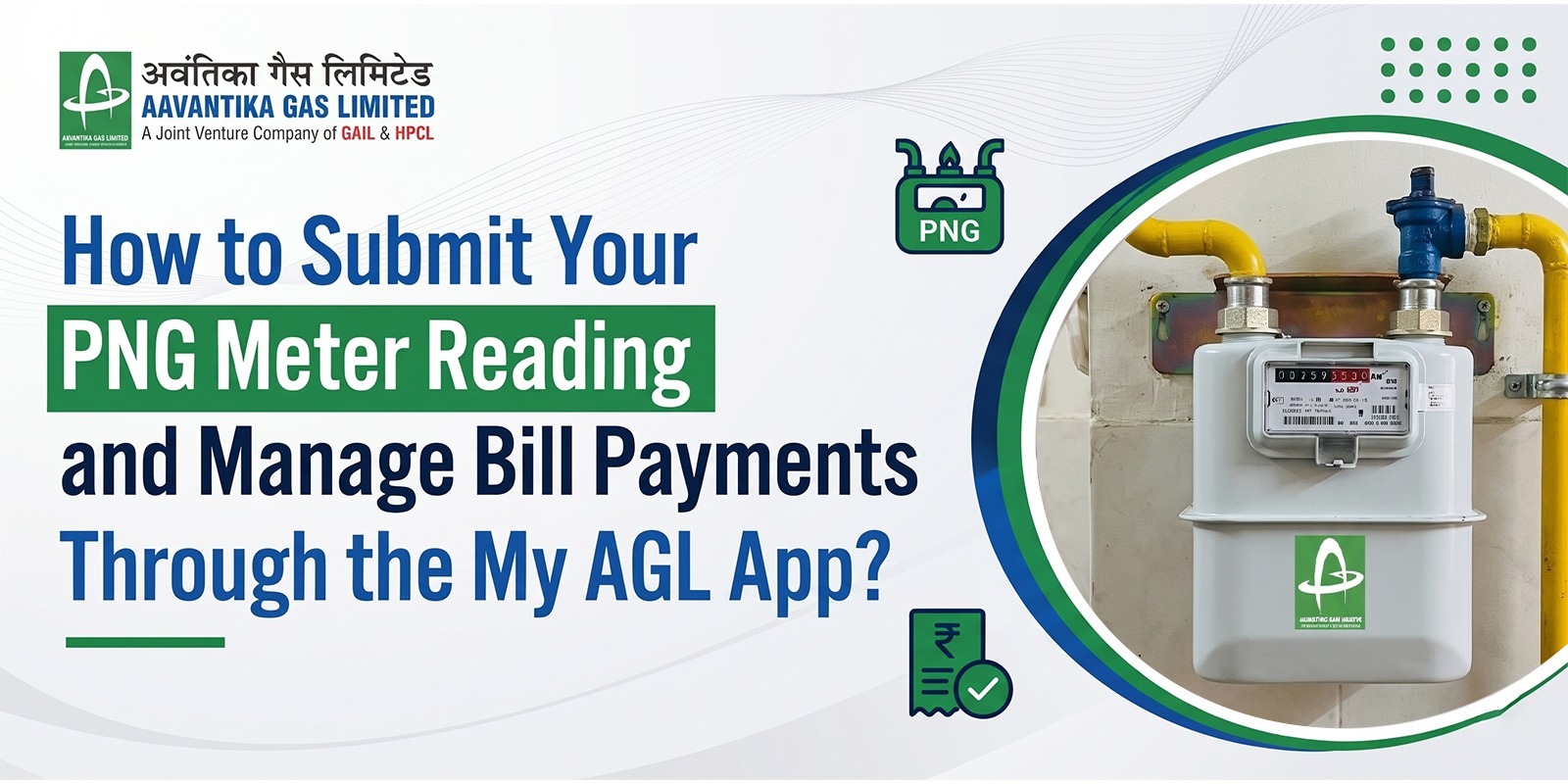
Checking PNG bills, monitoring gas consumption, and keeping track of payment due dates are part of the daily routine in many households. But what if you could manage all these tasks directly from your smartphone? Aavantika Gas Limited (AGL) has introduced the ‘My AGL’ mobile application for its domestic PNG customers, allowing them to access essential services related to their gas connection. The app features options such as ‘My Bill’, ‘My Payments’, ‘Meter Reading’, ‘Billing-related Queries’, and ‘Service Requests/Complaints’. For customers with PNG connections in Indore, Ujjain, Pithampur, and Gwalior, these digital tools can simplify everyday gas-related tasks. In this blog, we will explain how you can submit your meter reading, check your bill, and understand the available options for paying your PNG gas bill.
What Can You Do Through the My AGL App?
The ‘My AGL’ app offers a range of features for customers, all in one place. The key sections of the My AGL application are as follows:
1. My Bill – View and download copies of your PNG bills.
2. My Payments – Review your past payments.
3. Understand Your Bill – Learn about the various details provided in your gas bill
4. Billing FAQs – Find information regarding common questions related to billing.
5. Meter Reading – Enter your meter reading and submit it to AGL.
6. Service Requests/Complaints – Submit requests or lodge complaints concerning billing, metering, or other issues.
7. PNG Dos and Don’ts – Read essential instructions for situations such as a gas leak or an interruption in gas supply.
AGL recommends installing or updating to the latest version of the app to take advantage of the ‘self-billing’ feature.
How to Submit Your PNG Meter Reading Through the My AGL App?
The Meter Reading section allows customers to capture their current meter reading and submit it to AGL for billing purposes.
Step 1: Install or Update the My AGL App
Visit the Google Play Store or Apple App Store and search for the official My AGL application. If it is already installed on your phone, check whether an update is available. Use the application published by Aavantika Gas Limited. Keeping it updated helps you access the latest available customer facilities.
Step 2: Open the Meter Reading Section
Open the application and access the available customer facilities. Find the Meter Reading section. AGL identifies this section as the facility for capturing and submitting meter readings. Follow the instructions displayed in the application to continue.
Step 3: Check Your PNG Meter Reading
Visit the location where your PNG meter is installed. Look at the meter display and carefully note the current reading. For example, if your meter displays 245.60, use the current reading rather than copying the number from your previous bill. Make sure you are checking the correct meter, especially if multiple meters are installed nearby.
Step 4: Capture and Submit the Reading
Use the Meter Reading facility to capture your current reading and submit it to AGL as instructed by the app. Before submission, check that the displayed reading is clear and that you have not entered an incorrect digit. Follow any additional instructions shown on your screen. If you are unsure whether your reading has been submitted successfully, Contact AGL customer care 0731-6712222 for Indore Costumers,7772825555 For Ujjain Costumers, 6262001232 for Gwalior Costumers, 9977229649 for Pithampur for confirmation.
How to Check Your PNG Gas Bill Through the My AGL App?
Once your bill is generated, you can use the My Bill facility to access it.
1. Open the My AGL application.
2. Find the My Bill section.
3. Open the available bill for your PNG connection.
4. Check the bill details and amount payable.
5. Use the download facility to save a copy of your bill for future reference.
You can also use the Know the Bills section to understand the different entries mentioned in your bill. This is helpful if you want to understand your gas consumption, billing amount or other charges.
How to Make PNG Gas Bill Payment?
It is important to understand the difference between checking your bill and paying it. AGL’s My AGL app provides the My Bill section for viewing and downloading bills, while My Payments displays payments already made.
For online PNG Gas Bill Payment, AGL lists payment options on its official website.
Follow this process for online payment –
Step 1: Visit the AGL Website
Open www.aglonline.net and select the Pay Bill option.
Step 2: Choose the Online Payment Facility
Open the official bill payment facility and follow the instructions provided for your customer account.
Step 3: Check Your Payment Details
Verify the consumer details and outstanding bill amount before proceeding with the transaction.
Step 4: Complete the Payment
Follow the available payment instructions. AGL also lists NEFT/RTGS/Net Banking, UPI and cheque through its customer care office drop box among its Domestic PNG payment options.
Step 5: Keep Your Payment Record
After making the payment, retain the transaction confirmation for reference. You can check the payment details recorded in the My Payments section of the My AGL app.
Important: The official app description does not publish a separate step-by-step direct payment process inside My AGL. Therefore, use the payment facility and instructions provided by AGL rather than assuming that My Payments is a payment button.
What If You Face a Problem?
If you cannot access the Meter Reading or My Bill section, first check your internet connection and application version. If the issue continues, use the Service Request/Complaint facility or contact AGL customer care. AGL customer care 0731-6712222 for Indore Costumers,7772825555 For Ujjain Costumers, 6262001232 for Gwalior Customers, 9977229649 for Pithampur , available from 9:30 AM to 6:00 PM.
Conclusion
From submitting your meter reading to checking your gas bill and reviewing payment history, the My AGL app provides useful facilities for Domestic PNG customers. By using these features, you can stay informed about your gas consumption and keep your billing details organised. Need help with your PNG connection or bill payment? Visit the official Aavantika Gas Limited website to explore customer services, payment options and connection-related information. If you are planning a new connection, you can also visit the official MyPNG portal for PNG Connections Registration.
Frequently Asked Questions (FAQs)
1. What is the name of AGL’s mobile application for PNG Meter reading ?
The AGL Download page lists the application as My AGL, developed for Aavantika Gas Limited customers.
2. Can I submit my PNG meter reading through the My AGL app?
Yes. The Meter Reading section allows customers to capture and submit their readings to AGL for billing purposes.
3. Can I download my PNG gas bill through the application?
Yes. The My Bill section allows customers to view and download their bill copy.
4. What is the use of the My Payments section?
It displays payments already made by customers.
5. Which cities does AGL serve with Domestic PNG connections?
AGL provides Domestic PNG services in Indore, Ujjain, Pithampur and Gwalior.

No Comments
Sorry, the comment form is closed at this time.